Appearance
Affinity
CurrentSync Granola meeting notes to Affinity CRM. Update deal and contact records from your sales and customer meetings.
Once connected to Affinity, Granola makes sending your meeting notes to your CRM as easy as one click. Granola only adds new notes to Affinity - it will never edit or delete existing notes in your CRM.
If you're using Granola for iPhone, you can share your notes to Affinity from Granola on macOS/Windows - just complete these steps and share your notes on your computer.
Add your API key
Bear this in mind: Your API key is tied to your account. If you're in a workspace, each person needs to generate their own API key in order to post to Affinity under their account.
Here's how to set it up:
Sign into Affinity at https://www.affinity.co/
Click
Settingsin the left navigation, then clickManage Appsunder Developer ToolsClick the
+ New Appbutton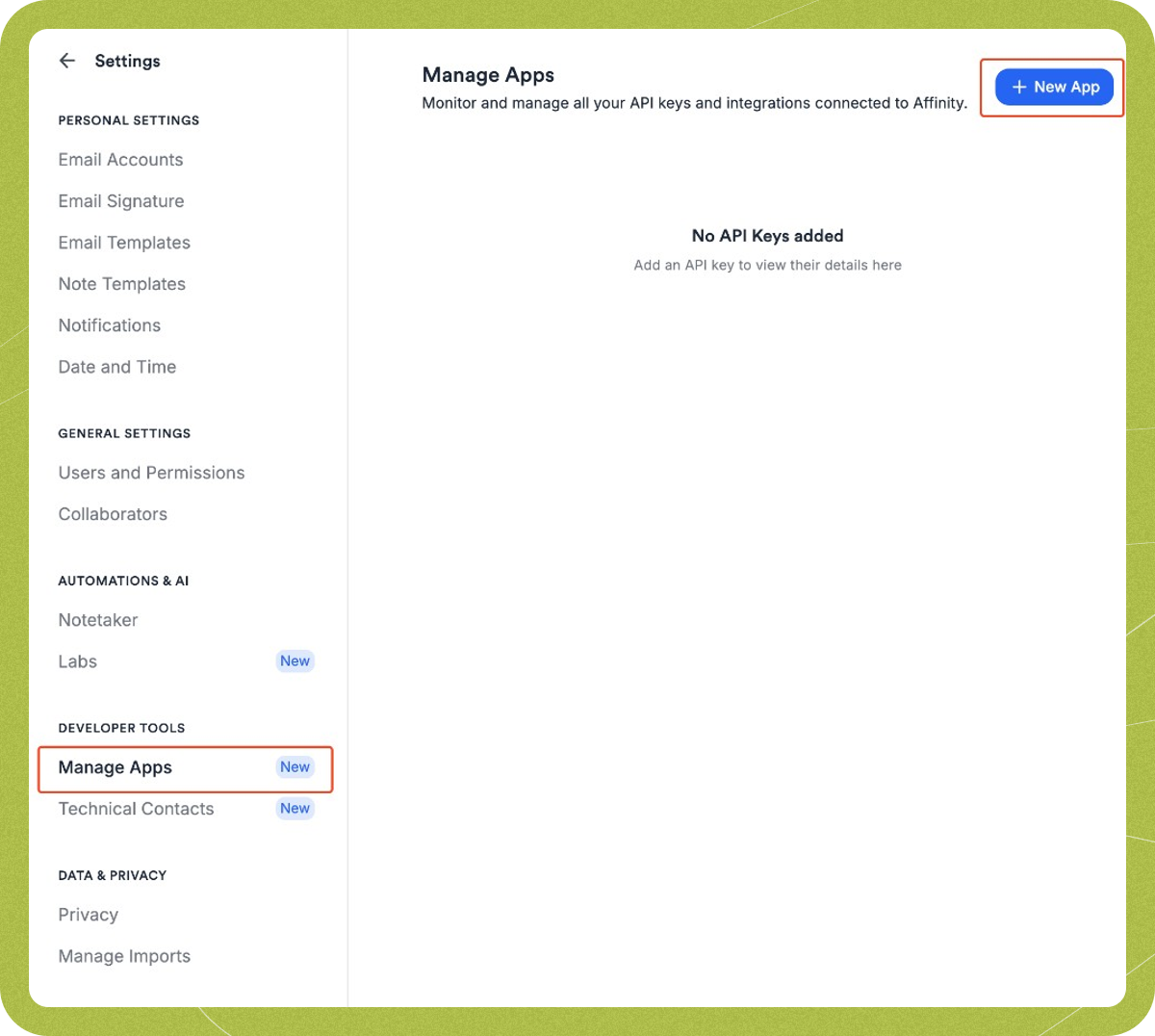
Enter a name for your app (e.g. "Granola") and optionally add a description, then click
Add App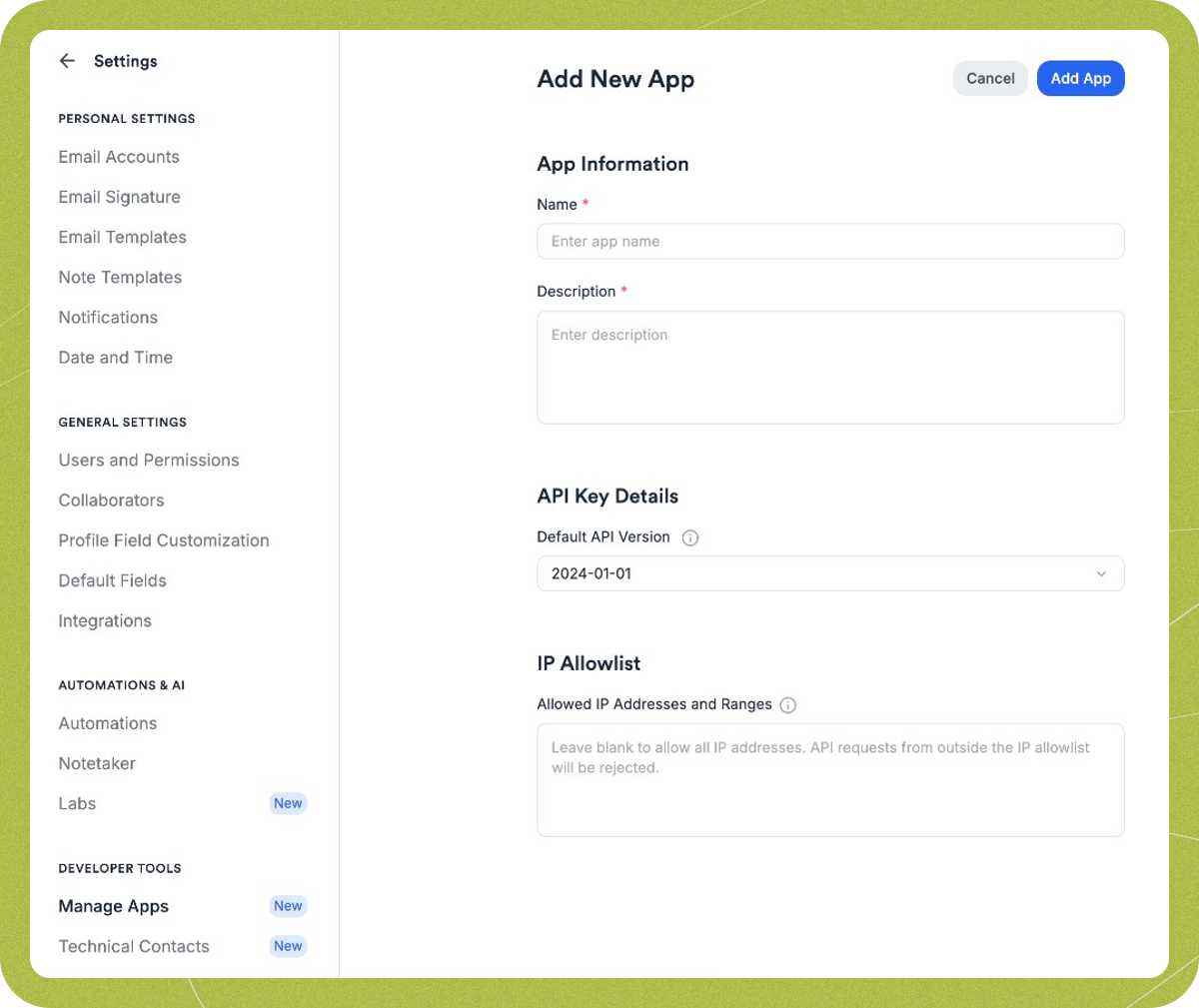
An API Key Created modal will appear - copy the key immediately, as you won't be able to see it again
Head to
Settingsin Granola (click your avatar in the bottom left corner of Granola), thenConnectorsand paste your Affinity API key in the box provided. It will save automatically.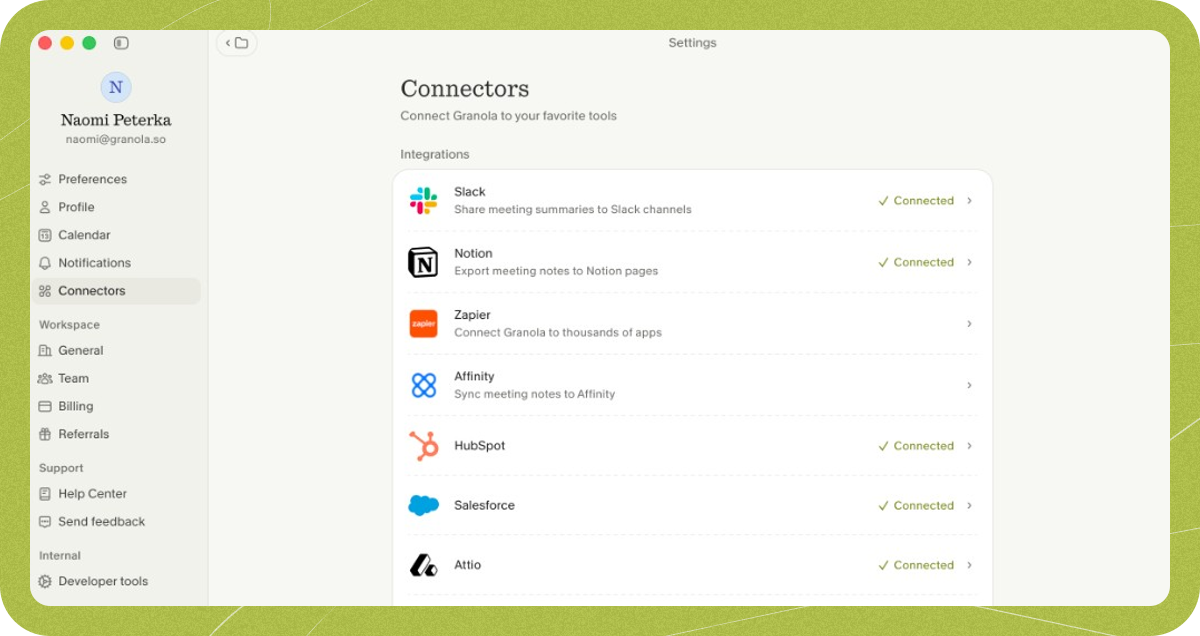
You'll now see Affinity appear as a sharing option in a Granola note.
Troubleshooting
If you can't get the integration to connect:
Check that you're using the same email address to log in to Granola and Affinity
Check that you're using a unique API key, not one generated by another user
If your Affinity integration was previously connected and has stopped working:
Try disconnecting and reconnecting the integration.
- Error: "Something didn't work. Check your key or try again."
Check you're using a unique key, not one that someone else has generated. Sometimes this error occurs because your organisation is hitting Affinity's API limit: check with your team admin if this could be the case.
If these steps don't work, reach out to our support team on hey@granola.so for more help. It's always helpful to see screenshots or a screen recording of what you're seeing!